

⚡ First automation
Create your first automation in Home Assistant.
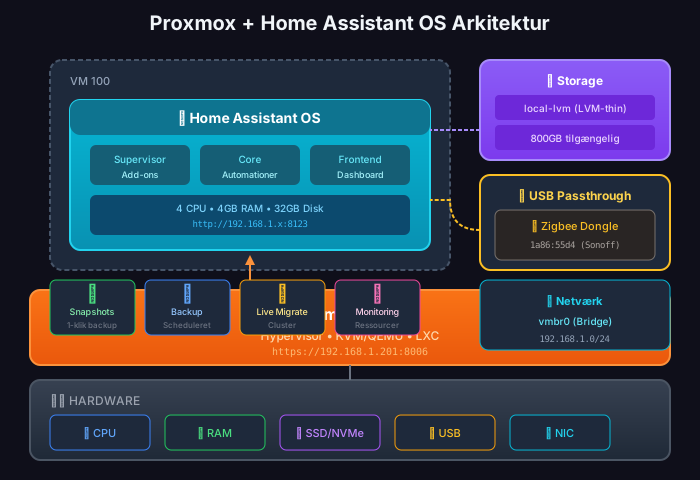
Proxmox is a fantastic platform to run Home Assistant OS. You get full VM isolation, snapshots, backup, and the ability to run other services on the same hardware.
| Feature | Proxmox VM | Raspberry Pi | Docker |
|---|---|---|---|
| Snapshots | ✅ One click | ❌ No | ❌ No |
| Live backup | ✅ Yes | ⚠️ Manual | ⚠️ Manual |
| Hardware passthrough | ✅ USB, PCIe | ✅ Direct | ⚠️ Limited |
| Resource scaling | ✅ Easy | ❌ Fixed hardware | ✅ Yes |
| Other VMs/containers | ✅ Unlimited | ❌ No | ✅ Yes |
| Add-ons support | ✅ Full | ✅ Full | ❌ Separate |
The easiest method uses the official community script from community-scripts.github.io/ProxmoxVE.
Log into Proxmox shell
SSH to your Proxmox server or use Shell in web interface:
ssh root@YOUR-PROXMOX-IPRun installation script
bash -c "$(wget -qLO - https://github.com/community-scripts/ProxmoxVE/raw/main/vm/haos-vm.sh)"Follow installation wizard
The script will ask about:
100)q35 (modern, better performance)OVMF (UEFI) - required for HAOS32GB, recommended 64GB+2, recommended 44096MB, recommended 4096-8192MBvmbr0)YesWait for installation
The script downloads HAOS image and creates the VM. This takes 2-5 minutes.
Find IP address
When VM is started, find IP via:
# In Proxmox shellqm guest cmd VMID network-get-interfacesOr check your router’s DHCP list.
If you prefer full control, you can install manually.
Find latest version
Go to Home Assistant OS releases and find the latest qcow2 file for KVM/Proxmox.
Download to Proxmox
# SSH to Proxmoxcd /var/lib/vz/template/iso/
# Download latest HAOS (replace VERSION with current)wget https://github.com/home-assistant/operating-system/releases/download/VERSION/haos_ova-VERSION.qcow2.xz
# Extractxz -d haos_ova-VERSION.qcow2.xz
Create VM without disk
# Replace VMID with your desired ID (e.g., 100)qm create VMID \ --name haos \ --memory 4096 \ --cores 2 \ --cpu host \ --bios ovmf \ --machine q35 \ --net0 virtio,bridge=vmbr0 \ --ostype l26 \ --agent 1 \ --onboot 1Add EFI disk
qm set VMID --efidisk0 local-lvm:1,efitype=4mImport HAOS disk
# Import qcow2 to VMqm importdisk VMID /var/lib/vz/template/iso/haos_ova-VERSION.qcow2 local-lvm
# Attach disk to VMqm set VMID --scsi0 local-lvm:vm-VMID-disk-1,cache=writethrough,discard=on,ssd=1
# Set boot orderqm set VMID --boot order=scsi0
Start VM
qm start VMID| Setting | Value | Explanation |
|---|---|---|
| Machine | q35 | Modern chipset, better USB/PCIe |
| BIOS | OVMF (UEFI) | Required for HAOS |
| CPU Type | host | Full CPU support |
| CPU Cores | 2-4 | 2 minimum, 4 recommended |
| RAM | 4096-8192 MB | 4GB minimum |
| SCSI Controller | VirtIO SCSI | Best disk performance |
| Disk Cache | Write through | Safe, good performance |
| Network | VirtIO | Best network performance |
| QEMU Agent | Enabled | Snapshots, IP display |
To use USB devices (Zigbee coordinator, Z-Wave stick) in Home Assistant:
Find USB device ID
# On Proxmox hostlsusbAdd to VM
# Format: vendor:product (from lsusb output)qm set VMID --usb0 host=1a86:55d4Restart VM
qm reboot VMIDPerfect before updates or experiments:
# Create snapshotqm snapshot VMID pre-upgrade --vmstate 1
# Restore snapshotqm rollback VMID pre-upgrade
# Delete snapshotqm delsnapshot VMID pre-upgrade⚡ First automation
Create your first automation in Home Assistant.
📡 Zigbee2MQTT
Add Zigbee devices with USB passthrough.