

🌡️ Better Thermostat
Combine with intelligent heating control.
Shelly Wall Display is a 4” touchscreen with built-in sensors and relay. It can show Home Assistant dashboards directly on the screen - perfect as a control panel in kitchen, hallway or bedroom.
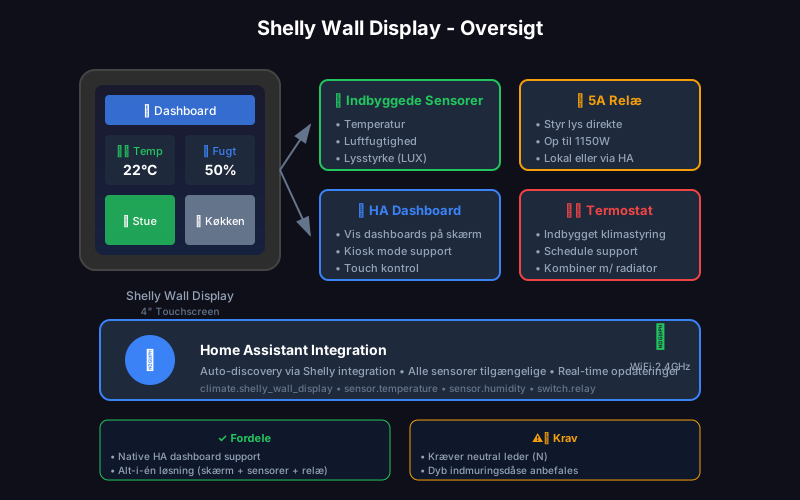
Shelly Wall Display is an all-in-one solution that combines:
| Feature | Specification |
|---|---|
| Screen | 4” IPS touchscreen (480x480) |
| Sensors | Temperature, humidity, brightness (LUX) |
| Relay | 5A built-in switch |
| Connection | WiFi 2.4GHz |
| Power | 110-230V AC (requires neutral) |
| Mounting | Standard wall box |
Home Assistant automatically finds Shelly devices:
After adding you get these entities:
| Entity | Type | Description |
|---|---|---|
climate.shelly_wall_display | Thermostat | Built-in thermostat function |
sensor.shelly_wall_display_temperature | Sensor | Room temperature |
sensor.shelly_wall_display_humidity | Sensor | Humidity |
switch.shelly_wall_display | Switch | The 5A relay |
This is the really smart feature - you can show an HA dashboard directly on Wall Display!
Create a simple dashboard optimized for the small screen:
title: Wall Displayviews:  - title: Home    type: panel    cards:      - type: vertical-stack        cards:          # Temperature and humidity          - type: horizontal-stack            cards:              - type: entity                entity: sensor.shelly_wall_display_temperature                name: Temp              - type: entity                entity: sensor.shelly_wall_display_humidity                name: Humidity
          # Quick buttons          - type: horizontal-stack            cards:              - type: button                entity: light.living_room                name: Living Room                tap_action:                  action: toggle              - type: button                entity: light.kitchen                name: Kitchen                tap_action:                  action: toggle
# Thermostat - type: thermostat entity: climate.shelly_wall_displayKiosk Mode is a HACS integration that hides Home Assistant’s navigation bar, sidebar and other UI elements. This gives a clean, fullscreen dashboard - perfect for wall-mounted displays.
Add ?kiosk to your dashboard URL:
http://192.168.1.190:8123/dashboard-wall-display?kioskOther URL parameters:
?hide_header - Hide only header?hide_sidebar - Hide only sidebar?kiosk&cache - Save setting in browser cacheautomation: - alias: "Turn on ventilation at high humidity" trigger: - platform: numeric_state entity_id: sensor.shelly_wall_display_humidity above: 65 for: minutes: 5 action: - service: switch.turn_on entity_id: switch.ventilationautomation: - alias: "Dim light in evening" trigger: - platform: numeric_state entity_id: sensor.shelly_wall_display_illuminance below: 50 condition: - condition: time after: "18:00:00" before: "23:00:00" action: - service: light.turn_on entity_id: light.living_room_accent data: brightness_pct: 30Tips for dashboards that work well on the 480x480 screen:
| Recommendation | Why |
|---|---|
| Use large buttons | Easier to tap with finger |
| Max 6-8 elements | Screen is small |
| Avoid scrolling | Works poorly on device |
| Use icons | More intuitive than text |
| High contrast | Better readability |
🌡️ Better Thermostat
Combine with intelligent heating control.
⚡ Automations
Create automations based on sensor data.