

New automations
Build the next one with the new 2026.7 triggers.
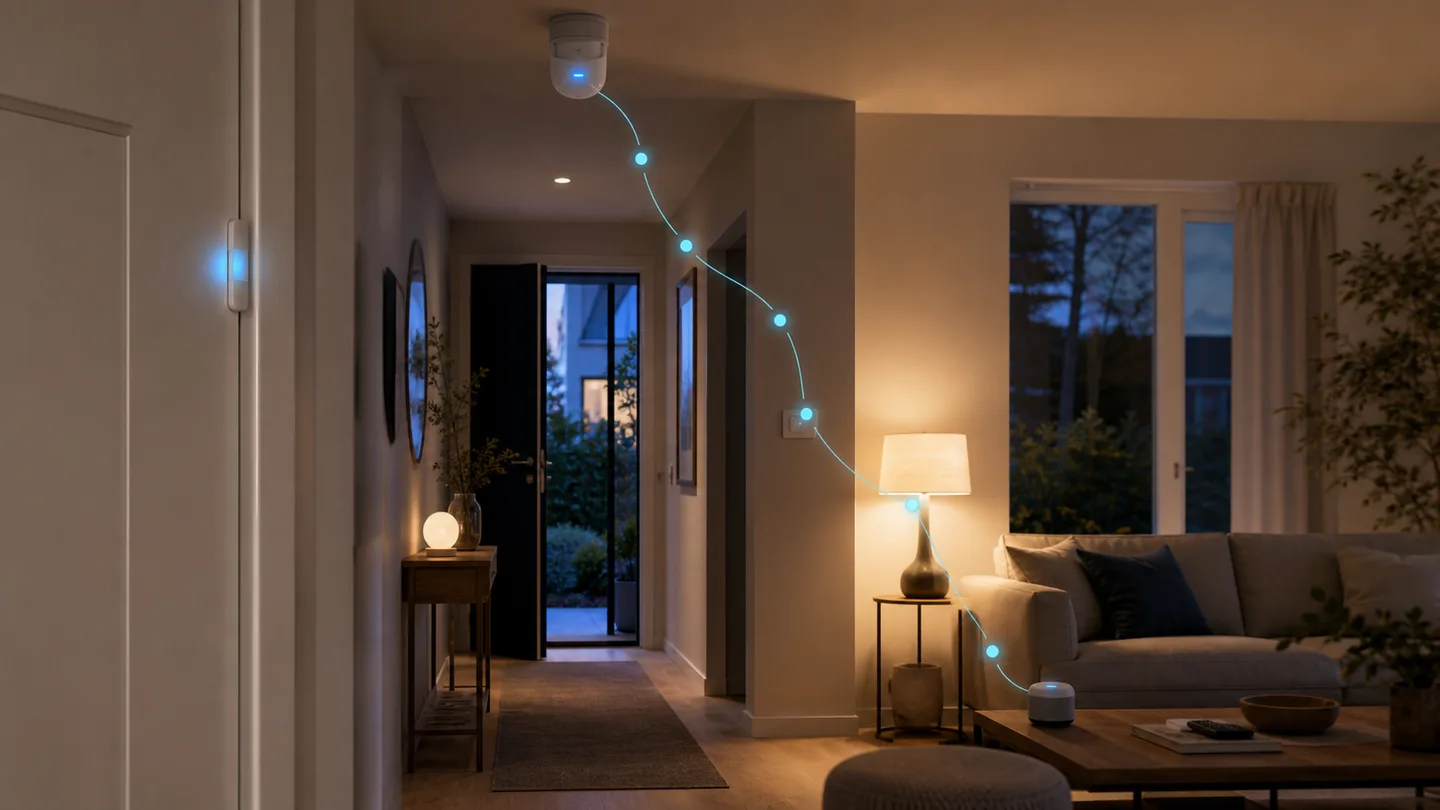
A light comes on in the middle of the night. The heating changes temperature. One alert arrives twice. Before changing anything, it helps to establish what actually happened.
In Home Assistant 2026.7, the former logbook became Activity: a clearer timeline that shows both an event and its cause. If an automation was involved, you can continue to its Trace and inspect that run step by step.
The three tools look related, but solve different problems:
| Tool | Best for | What it shows |
|---|---|---|
| Activity | A quick explanation | Changes in time order and their causes |
| History | A pattern over time | State changes and graphs for selected entities |
| Trace | One automation run | Its trigger, conditions, actions, and errors |
Start in Activity when the question is “Why did the lamp turn on?” Start in History when it is “How often does the temperature change during the day?” Open a trace when Activity points to an automation.
Imagine that the hallway light came on at 2:14 AM.
Note the time and device
Write down the approximate time and use the lamp’s Home Assistant name. That is more useful than a name from the manufacturer’s app.
Open the lamp’s activity
Open the lamp from a dashboard or device page. Its more-info dialog contains a compact activity view for that entity.
Find the right change
Select the time to switch between relative and exact time. Look at the icon beside the event: it may identify a user, automation, or integration as the cause.
Follow the cause
If an automation is named, open that activity entry and continue to the automation trace.
Read the path that ran
The trace highlights the route taken through the automation. Select the step where a condition failed or an action behaved unexpectedly.
Compare affected entities
Use the trace’s related activity. Check whether the sensor changed before the light and whether another automation reacted to the same event.
The order matters. Manually controlling a lamp only proves the lamp can be controlled. It does not prove that the trigger, condition, and natural run work.
The new timeline is grouped by day and reads from top to bottom. Colored state dots make on and off easier to distinguish, while the cause appears next to the event.
Look for:
Events occurring close together are not automatically causal. If a motion sensor and a light change at nearly the same time, open the trace before concluding that one triggered the other.
Home Assistant normally stores the five most recent traces for each automation. A trace is created only when the automation actually runs. Run actions skips its triggers and conditions, so it cannot prove the complete flow.
For YAML-created automations, each automation also needs a unique id
before Home Assistant stores its debug traces. An alias is only the display
name and does not replace the id. Automations created in the UI receive an id
automatically.
Check these in order:
If an important automation runs frequently, the default five traces can be replaced quickly. Increase the count only for a clear reason; storing more traces is not a substitute for investigating a fresh problem.
Activity relies on data stored by Home Assistant’s Recorder. If an entity is excluded from Recorder, or older data has passed the retention period, the timeline cannot reconstruct it.
Before changing filters or retention:
Once you know the cause, record it in the automation description:
July 30: The light was triggered by the basement motion sensor, which had accidentally been assigned to the Hallway area. Moved it to the correct area.
A short note is more useful than ten changes nobody remembers. Change one thing, wait for a natural run, and compare the new trace with the old one.
Open the full Activity page and the affected device. Integrations do not all provide the same amount of causal context.
Select the condition and read its actual result. Fix the documented state or threshold instead of adding an arbitrary delay.
That is expected when the problem is in the trigger or a condition. Run actions skips both. Test with a natural event.
Open related activity around the same time. Two automations can react to the same sensor without being aware of each other.
New automations
Build the next one with the new 2026.7 triggers.
General troubleshooting
Continue with Home Assistant troubleshooting.
SmartBolig // AI Core
Get help with troubleshooting, architecture and concrete configuration. I use broad AI knowledge and find SmartBolig guides when they improve the answer.
Start with a useful question