

Choose a coordinator
Compare Zigbee coordinators before starting a network.
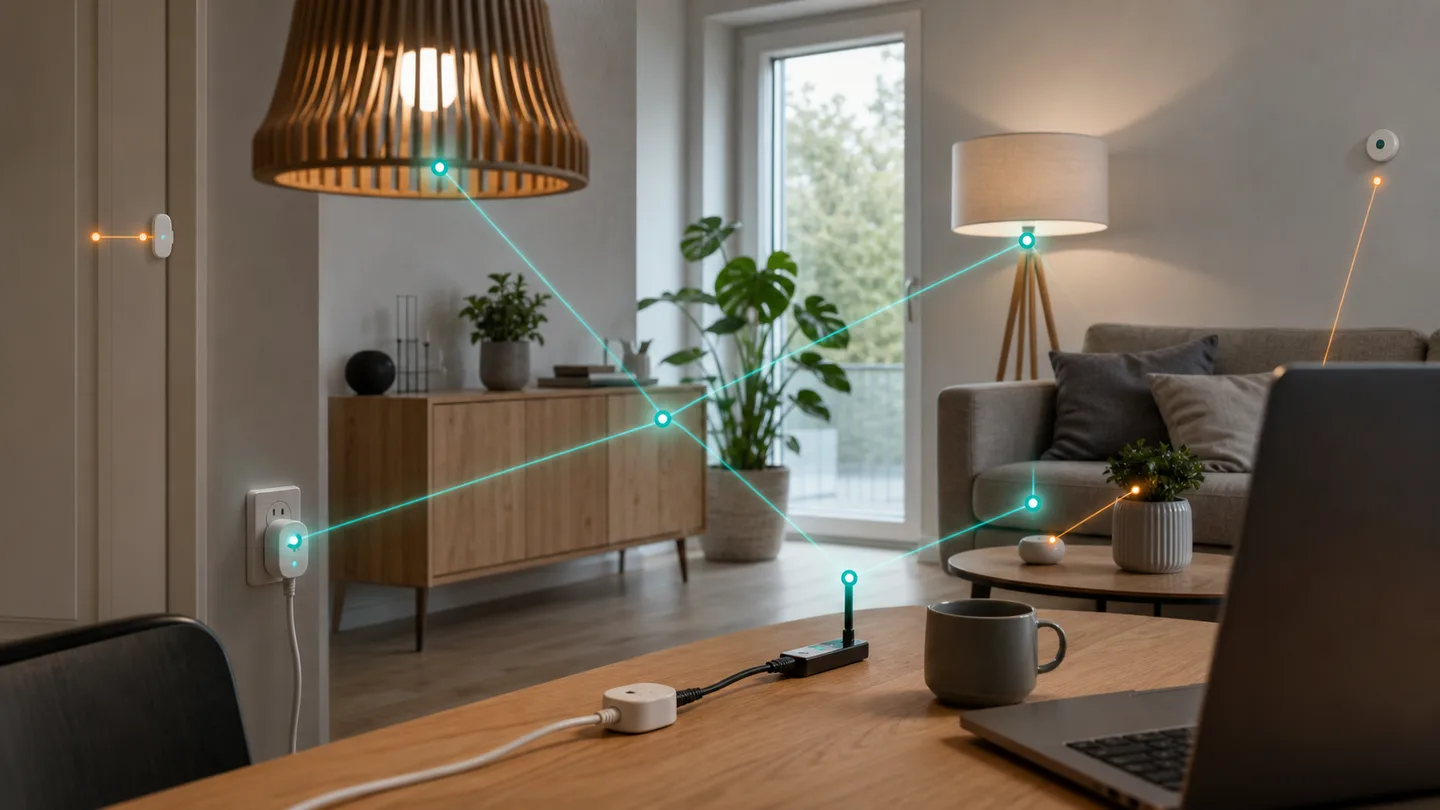
ZHA is Home Assistant’s built-in Zigbee solution. It connects a compatible coordinator with bulbs, plugs, sensors, and remotes without a separate Zigbee platform.
In Home Assistant 2026.7, advanced device management moved from a cramped dialog to a full page with tabs for clusters, bindings, signature, and neighbors. The information is easier to use, but you still do not need to change advanced fields to build a stable home.
A good Zigbee network starts with placement, not maximum transmit power:
Battery sensors are normally end devices. They do not extend the network. Bulbs, plugs, and fixed modules can often route traffic, but only while powered. A Zigbee bulb behind an ordinary wall switch is therefore an unreliable router if the switch is regularly turned off.
The reset method depends on the model. Find it in the manufacturer’s manual before starting.
Place the device near its intended location
Keep its reset control within reach, while also testing the part of the home where it will be used.
Open Zigbee
Go to Settings → Zigbee and choose to add a device. On older installations, use Devices & services → ZHA.
Factory-reset the device
Put it into pairing mode according to its manual. Removing a device from an old hub is not always the same as factory-resetting it.
Allow discovery to complete
Let Home Assistant find the device and create its entities. A battery device may need another button press to remain awake during configuration.
Name it by function and place
Use Hallway motion rather than the model number. Assign the correct area,
and rename individual entities only when that makes them clearer.
Test in the final location
Trigger the sensor or control the device several times. Confirm that state and battery information arrive without long gaps.
Add fixed router devices before the most distant battery sensors when possible. The mesh needs time to settle; a first test next to the coordinator does not prove the connection will work in the garage or upstairs.
Open Settings → Zigbee → Devices, select the device, and use the menu beside Reconfigure to choose Manage Zigbee device. In 2026.7, the tools appear on a full page.
| Tab | What it is useful for |
|---|---|
| Summary | Quick check of model, manufacturer, and status |
| Signature | Evidence for bug reports and devices with missing functions |
| Neighbors | A snapshot of direct Zigbee connections |
| Bindings | Direct links between compatible buttons and devices |
| Clusters | Raw Zigbee functions and attributes for advanced diagnosis |
The neighbor list is not a complete, permanent map of the entire mesh. One low value or missing neighbor is not proof of a fault. Judge the device by its actual stability over time.
A plug may be discovered without energy readings. A sensor may show temperature but not humidity. Before deleting it:
Re-pairing is a last step, not a first one. Removing a device can break automation and dashboard references, particularly if entity names change when it is added again.
ZHA can expose Zigbee firmware through normal update entities. Availability depends on the device supporting OTA and its manufacturer making firmware public through a supported source.
Before an update:
Home Assistant’s ZHA documentation warns that firmware can sometimes remove features, require reconfiguration, or even make a device unusable. An available update is therefore not automatically a necessary update.
If devices drop from the network, fix the physical foundation first:
A strong signal beside the coordinator does not solve a dead spot behind two concrete walls. Several well-placed routers usually achieve more than one powerful transmitter.
Factory-reset it using the model’s manual, move it closer to a router or coordinator, and check that it is not still attached to an old hub.
Wake it with short button presses while ZHA configures it. Battery devices sleep to conserve power.
Extend the mesh with mains-powered Zigbee routers and check placement and radio interference.
Fit fresh batteries, wake the device, and ensure a stable connection. An OTA update can take around ten minutes or longer on a weak mesh.
Choose a coordinator
Compare Zigbee coordinators before starting a network.
Using Zigbee2MQTT?
Follow the Zigbee2MQTT guide instead.
SmartBolig // AI Core
Get help with troubleshooting, architecture and concrete configuration. I use broad AI knowledge and find SmartBolig guides when they improve the answer.
Start with a useful question