

Laundry alert
Use the group in a washing-machine notification.
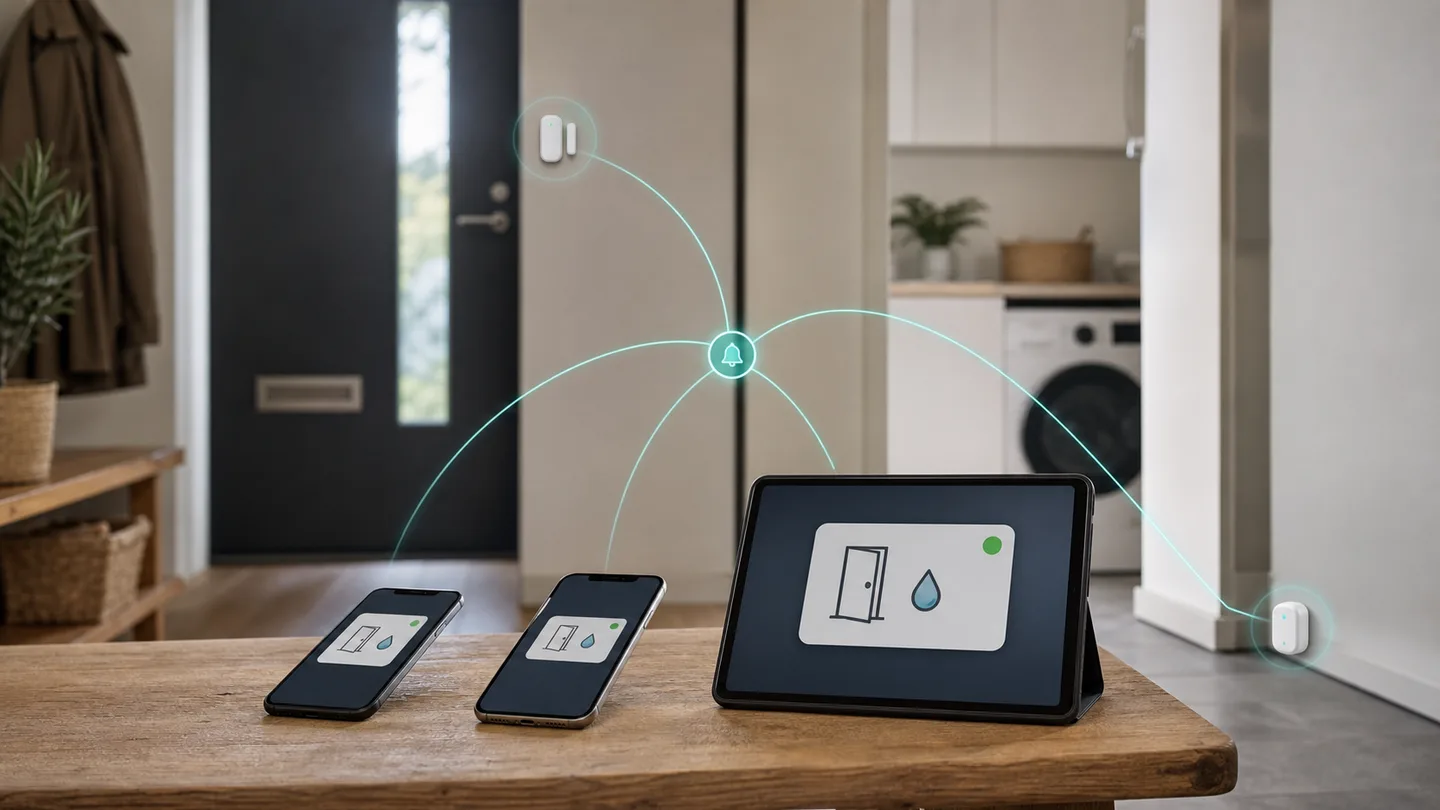
When a leak is detected, both your phone and your partner’s may need an alert. Older setups often ended up with a long list of phone-specific actions. From Home Assistant 2026.5, the Mobile App integration also creates a notification entity for each device.
These new notify entities can be combined in a group helper directly in the
user interface. Automations send to one stable target, while the phones and
tablets in that group can be changed in one place.
Check every phone or tablet:
notify entity is enabled and not unavailable.If a phone cannot receive its own test, adding it to a group will not fix it. Repair the device first.
Open Helpers
Go to Settings → Devices & services → Helpers.
Create a helper
Select Create helper → Group, then choose the notification group type.
Choose members
Add the relevant notify entities for phones and tablets. Include only
devices that should receive the same kind of message.
Name the purpose
Use something such as Adults – house alerts or All family phones.
Avoid just Phones if you may create more groups later.
Save
Home Assistant creates one new notify entity for the group.
Notification entities can only be grouped through the UI. Older, phone-specific notify actions can still exist, but their legacy group form is YAML-based and is not what we are building here.
notify.send_message).Test from Home Assistant.Test with screens locked and the app in the background. That is the normal use case, and phone power-saving settings can affect delivery.
A simple example is a water leak:
When the kitchen sensor detects water, send “Water detected below the kitchen sink” to the Adults – house alerts group.
In the automation editor:
Choose the leak event
Use the purpose-specific moisture-detected trigger or the stable leak sensor entity.
Add the notification action
Select Send a notification message.
Target the group
Choose the group’s notify entity, not the generic notify.notify action.
Write a specific message
Say what happened and where: Water detected below the kitchen sink.
Test the action
Run the notification action alone with clearly marked test text.
Test a natural event
Trigger the sensor safely and inspect the automation trace afterwards.
Home Assistant’s general notify.notify shorthand selects the first notify
action the system finds. That can reach the wrong recipient. Use Send a
notification message with a specific entity target.
One group for every message quickly becomes noisy. Two or three clear groups are often better:
| Group | Good examples | Avoid |
|---|---|---|
| Adults – critical house status | Leak, smoke status, freezer too warm | Daily status messages |
| Whole family | Doorbell, shared reminder | Private cameras or access details |
| My devices | Phone, tablet, and watch | Alerts other people must act on |
Critical notifications can behave differently on iOS and Android and may bypass silent mode. Reserve them for genuine emergencies and test each platform separately.
A good notification contains:
Avoid generic text such as Alarm! or Sensor activated. The household should
understand it without opening Home Assistant.
Use a stable tag if the platform should replace an earlier alert with an update. Do not reuse one tag for unrelated events, or one message may overwrite another.
After replacing a phone, both the old and new devices may remain in Home Assistant.
The automations do not need to change. They still point to the same group.
Update Home Assistant to 2026.5 or later and check that the Mobile App
integration has created notify entities.
Test its entity alone. Check notification permission, server connection, background restrictions, and entity availability.
Open the group helper options and remove the old notification entity from the member list.
Open the automation trace and Activity. The automation may have triggered several times, or the phone may be both a direct target and a group member.
Laundry alert
Use the group in a washing-machine notification.
Find duplicates
Investigate repeated alerts with Activity and Traces.
SmartBolig // AI Core
Get help with troubleshooting, architecture and concrete configuration. I use broad AI knowledge and find SmartBolig guides when they improve the answer.
Start with a useful question